Google Postmaster Tools and Microsoft SNDS: how to read them
How to set up Google Postmaster Tools and Microsoft SNDS, what each dashboard shows today, what to do when a signal turns bad, and a weekly check routine.
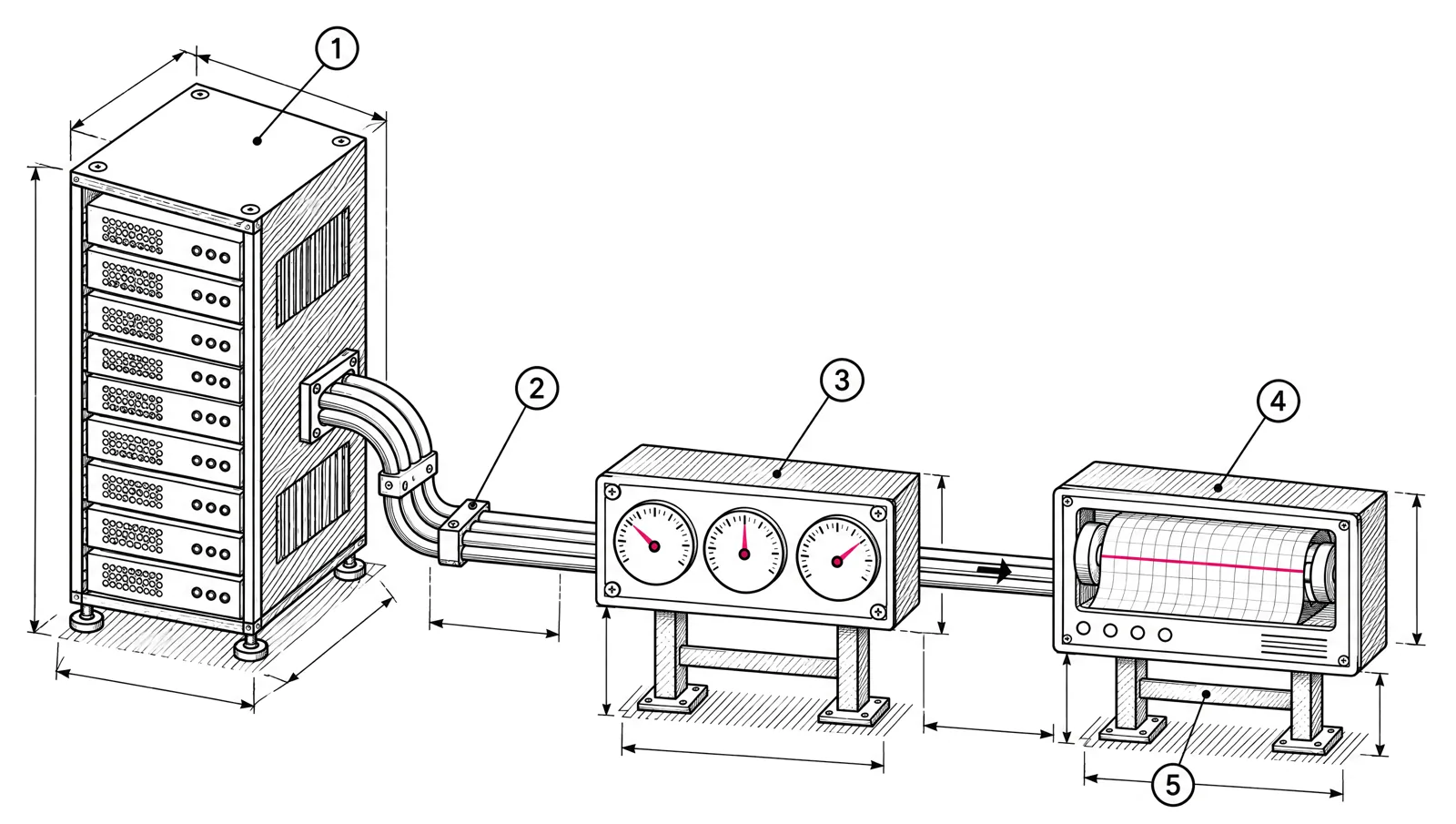
Google Postmaster Tools shows how Gmail sees your sending domain: compliance with its sender rules, spam complaints, authentication and delivery errors. Microsoft SNDS shows how Outlook.com sees your sending IPs: volume, spam filter verdicts and complaints. Both are free and both update about once a day. This guide sets up each one, explains what the dashboards show as of November 2026, and ends with a routine you can run every week.
The two tools side by side
| Google Postmaster Tools | Microsoft SNDS | |
|---|---|---|
| Covers | Mail to personal Gmail accounts (@gmail.com, @googlemail.com) | Mail to Outlook.com consumer mailboxes |
| Organised by | Domain (your DKIM or SPF domain) | IP address |
| Who can sign up | Anyone who can verify the domain in DNS | The owner of the IP range |
| Updates | Typically within 24 hours, in UTC | Daily, around midnight Pacific time |
| History | Last 7, 30, 60, 90 or 120 days | 90 days |
The key difference is the unit. Postmaster Tools follows your domain wherever you send from. SNDS follows the IP, so on a shared IP it shows the traffic of every sender on it.
Set up Google Postmaster Tools
- Sign in at postmaster.google.com with a Google account.
- On Manage Domains, choose Add new domain and enter the domain you authenticate with: the DKIM
d=domain or the SPF (Return-Path) domain. If you send fromnews.yourcompany.comand sign with that domain, add it. - Open the domain’s menu, choose Verify domain, and copy the TXT or CNAME record it shows.
- Add the record at your DNS provider, then return and click Verify. Google says this is usually immediate but can take up to 10 minutes.
- Optional: under Manage users, give teammates access. They need a Google account, and Google does not notify them.
news.yourcompany.com. 3600 IN TXT "<verification value copied from Postmaster Tools>"If the primary domain is verified, subdomains don’t need their own verification. Add them anyway if you want to see their data separately.
What Postmaster Tools shows today
Google’s help page lists these dashboards:
| Dashboard | What it shows | Check it for |
|---|---|---|
| Compliance status | Whether your mail meets each Gmail sender requirement | The first thing to check every week |
| Spam rate | Share of mail delivered to the inbox that recipients marked as spam | Staying below 0.1% |
| Feedback loop | Spam rate per campaign, using your Feedback-ID header | Which campaign drives complaints |
| Authentication | Share of mail passing SPF, DKIM and DMARC | A drop after a DNS change |
| Encryption | Share of mail sent over TLS | Anything below 100% from your own servers |
| Delivery errors | Rejected and temporarily failed messages, with the reason | Rate limits and blocks |
Compliance status
This dashboard checks each requirement from Google’s sender guidelines and gives it one of three states: Compliant, Needs work or No data found.
All senders are checked on SPF and DKIM, DNS records, message formatting, encryption and user-reported spam rate. Bulk senders, those sending about 5,000 or more messages a day to Gmail accounts, are also checked on DMARC, one-click unsubscribe and honouring unsubscribes. Google expects an unsubscribe to be processed within 48 hours.
Two details catch people out:
- The dashboard reports for the primary domain only. If you add
email.yourcompany.com, its data counts towardyourcompany.com. - It uses a rolling average. After you fix something, Google says it can take up to 7 days for Needs work to clear.
Under Compliance status there is also a Deliverability analysis tool. It gives a recommendation when, for example, you send too little mail, your messages fail to deliver, or recipients don’t interact with your email.
Spam rate
This is the rate of user reports, not of mail Gmail filtered on its own. It counts messages that reached the inbox and were then marked as spam, for DKIM-signed mail. Gmail’s sender guidelines ask you to stay below 0.1% and never reach 0.3%.
A very low spam rate is not always good news. If Gmail is already sending most of your mail to the spam folder, few recipients see it in the inbox, so few can report it. Google’s own troubleshooting notes describe this case. Read the spam rate next to delivery errors and engagement.
Feedback loop
Gmail’s feedback loop reports complaints per campaign, in aggregate. It does not tell you which addresses complained. It needs a Feedback-ID header on your messages:
Feedback-ID: a:b:c:SenderIdSenderId is a required ID of 5 to 15 characters that stays the same across your mail stream. a, b and c are optional IDs you choose, such as a campaign or a mail type. Reports appear only when an ID has enough volume and enough spam reports on a given day.
Reputation
Google’s help page still describes IP and domain reputation ratings: High, Medium, Low and Bad. If your account shows them, read them as a trend. Compliance status and Spam rate are the better place to start.
Set up Microsoft SNDS
SNDS has a new portal, announced by Microsoft in September 2026. It is free and needs a Microsoft account.
- Sign in and go to Request access.
- Enter an IP, an IP range or an Autonomous System Number (ASN) you own.
- SNDS finds authorization addresses from the reverse DNS and the registry (RDAP) records for those IPs, such as
postmaster@andabuse@at the domain in the reverse DNS names. Pick one you can receive mail at. - Click the link in the authorization email.
The same announcement says access no longer needs to be renewed periodically.
What SNDS shows
For each IP, per day:
| Field | Meaning |
|---|---|
| Activity period | First and last hour of mail that day, Pacific time |
| RCPT commands | Recipients you tried to send to |
| DATA commands | Messages you transmitted |
| Message recipients | Recipients on messages actually sent |
| Filter result | Green, yellow or red. See below |
| Complaint rate | Junk reports divided by message recipients |
| Comments | Extra notes, such as junk mail reporting blocks |
The filter result colours are defined by the share of spam verdicts on your mail:
| Colour | Spam verdicts |
|---|---|
| Green | Under 10% |
| Yellow | Between 10% and 90% |
| Red | Over 90% |
Microsoft notes that a message to ten recipients counts as ten verdicts, and that the colour is one data point, not a measure of inbox placement.
Two benchmarks from Microsoft’s FAQ are useful. More than a third of IPs keep the share of RCPT commands that don’t become recipients under 10%. A large gap points to an old list. More than 30% of IPs keep their complaint rate under 0.3%. Complaints are shown on the day they were reported, so a busy day can briefly look worse than it was.
The View IP Status page lists IPs with a problem: Blocked, Bot or Junked. Data may be missing for an IP that sent fewer than 100 messages that day. You can export each page as CSV or turn on an automated download URL.
To get the actual messages users marked as junk, enroll the IPs in Microsoft’s Junk Mail Reporting Program (JMRP) from the same site.
When a signal turns bad
| Signal | Likely cause | What to do |
|---|---|---|
| Compliance: Needs work on authentication | A DNS change broke SPF or DKIM | Check the records, send a test, wait up to 7 days for the status |
| Compliance: Needs work on one-click unsubscribe | Some promotional mail lacks the headers | Use the feedback loop to find the campaign, add the headers |
| Gmail spam rate above 0.1% | A segment or campaign is unwanted | Find the source in the feedback loop, cut inactive subscribers, slow the frequency |
| Gmail spam rate near 0.3% | The same, at a level Gmail treats as non-compliant | Stop sending to the cause now. Send only to recent engaged subscribers until it drops |
| Delivery errors: rate limit | Volume rose too fast | Pause, then send slower. See IP warm-up |
| SNDS turns yellow | Spam verdicts rising at Outlook.com | Check complaints and JMRP reports for the same days, remove the group that caused it |
| SNDS turns red, or IP status Junked or Blocked | Most mail filtered or refused | Stop sending from that IP to Microsoft, fix the cause, then contact Microsoft sender support |
| Large gap between RCPT commands and recipients | Many invalid addresses | Clean the list and check your bounce handling |
Email bounce codes and what to do with each covers the codes behind the delivery errors, and Spam complaint rate: the limits and how to stay under them covers complaints in detail.
A weekly check routine
Fifteen minutes on the same day each week, plus a look after any large send:
- Postmaster Tools, Compliance status. Every item Compliant? Note any change since last week.
- Spam rate, last 30 days. Below 0.1%? Look for a rising line, not only the latest day.
- Feedback loop. Which ID has the highest rate? Is it the same one as last week?
- Authentication and encryption. Any drop below your usual level?
- Delivery errors. Any new rate limit or block reasons?
- SNDS, each IP. Colour for each day of the week, complaint rate, and the RCPT to recipients gap.
- SNDS IP status page. Empty is good.
- Write it down. One line per signal in a shared doc. A trend over 8 weeks tells you more than a single bad day.
Checklist
- Postmaster Tools set up for each sending domain, with the team added as users.
- A
Feedback-IDheader on your mail so the feedback loop can report per campaign. - SNDS access for your IPs, or an agreement that your provider shares the data.
- JMRP enrollment for your IPs.
- A weekly routine and a place to record it.
- Agreed actions for each signal before it turns bad.
At EmailMarketer.io, complaints from provider feedback loops unsubscribe and suppress the address automatically, and each campaign report shows bounce and complaint rates with warnings, plus results by recipient domain (see reports). Senders from 500,000 emails a month have a named deliverability contact to read these signals with. The deliverability page has the details.