Run email reports from Claude or ChatGPT
Connect an AI assistant to EmailMarketer.io over MCP and use it for weekly reports, segment checks and pre-send audits, while people keep the final send.
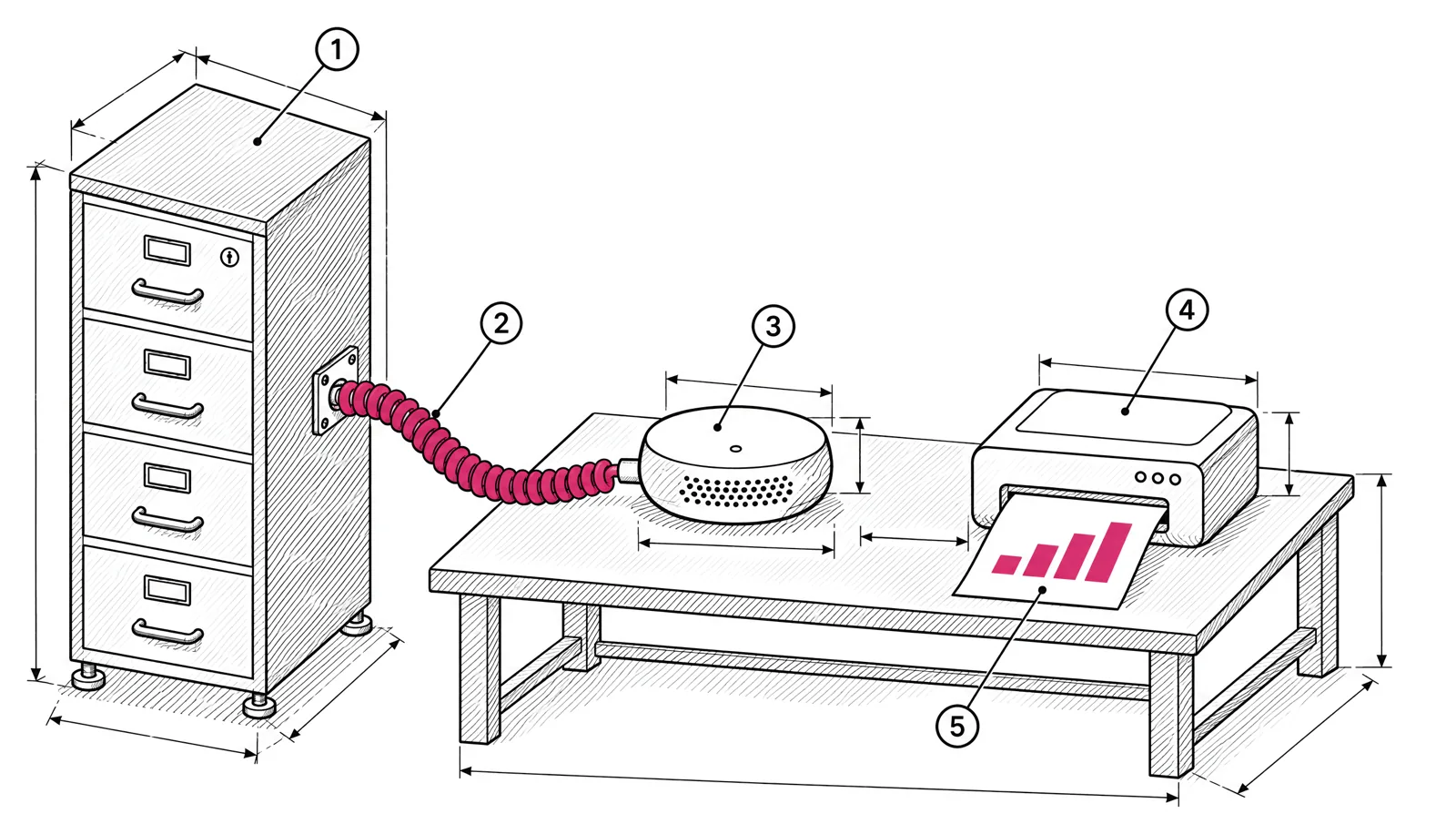
An AI assistant connected to your email account can answer “how did last week’s campaigns do?” from your real data in a minute, check a segment before a send, and review a campaign’s settings against a checklist. EmailMarketer.io connects to assistants such as Claude and ChatGPT through MCP. This post explains what MCP is, how the connection is controlled, the prompts that work for reporting and audits, and which decisions should stay with a person.
What MCP is
MCP, the Model Context Protocol, is an open standard for connecting AI applications to outside systems. A service publishes an MCP server that describes the actions it offers, such as “list campaigns” or “get campaign stats”. An assistant that supports MCP can then call those actions when you ask it something, and answer from the results. The protocol’s own documentation names Claude and ChatGPT among the assistants that support it (modelcontextprotocol.io). For you, it means the assistant reads your campaign data directly instead of you pasting exports into a chat.
How the EmailMarketer.io connection works
The facts are short:
| What | How it works |
|---|---|
| Connecting | One URL, then you sign in to EmailMarketer.io as you normally do |
| Access | Read, write or send, chosen per connection |
| Risky actions | The assistant asks you to confirm before deletes and large sends |
| Removing access | Revoke any connection in one click |
Once connected, the assistant can report on campaigns and manage lists, segments and journeys, within the access you gave that connection. Where you paste the URL depends on the assistant. Claude and ChatGPT each describe adding an MCP connection in their own help pages.
Choose the smallest access that does the job
| Job | Access to give |
|---|---|
| Weekly reports, campaign comparisons | Read |
| Building segments, editing journeys | Write |
| Sending or scheduling campaigns | Send, and only when you need it |
Make one connection per purpose. A reporting connection with read access can stay on permanently. A connection that can send should be the exception, and you can revoke it when the task is done.
Weekly reports
Most teams pull the same numbers every Monday. An assistant does this well because it can fetch each campaign’s results and lay them out in a table. Give it the period, the campaigns, the metrics and the format.
Report on every campaign sent from Monday 9 November to Sunday 15 November.
For each one: send date, list or segment, recipients, clicks, unsubscribes,
spam complaints, bounces, and conversions and revenue where tracked.
Put it in one table sorted by send date. Then list the two campaigns with
the most clicks per recipient and the two with the highest unsubscribe or
complaint rate. Do not report open rates.
The last line matters. Opens are unreliable since Apple Mail Privacy Protection, as covered in which email metrics to trust. Tell the assistant to leave them out or to label them as a rough trend.
Follow-up questions work well once the table exists:
Break the newsletter from 12 November down by recipient domain.
Is any provider far below the others on clicks, or higher on bounces?
Compare with the previous two newsletters to the same list.
Which of last month's campaigns had a bounce or complaint warning?
For each, show the bounce and complaint rates and the list it went to.Segment checks
Segments decide who gets an email. A wrong rule can send a win-back email to current customers or skip half the list. An assistant can read the rules and tell you in plain words who matches.
Open the segment "Trial users, not activated". Explain each rule in plain
English, say whether the rules use match all or match any, and tell me
how many contacts match right now. Flag any rule that would let in paying
customers.
I want a segment of contacts who have not clicked any email in 180 days
and are still subscribed to the Weekly list. Draft the rules for me and
tell me how many contacts would match. Don't create it yet.The second prompt ends with “don’t create it yet” on purpose. Even with write access, ask for the plan first and approve it before the assistant changes anything.
Journey checks
Journeys run without anyone watching, which is why they drift. A welcome journey built in spring may still link to a page you retired in autumn. An assistant can read each journey and list what it sends, so you can review the whole set in one place. Check the results against the per-step stats in the journey builder.
List every active journey. For each one, give the trigger and every email
step with its subject line and the links it contains. Flag any journey
that has no branch or condition before its email steps.
Open the journey "Trial onboarding". Walk through it step by step in plain
words: what starts it, each wait, each branch condition and each email
subject. Tell me where a contact who upgrades on day 3 would leave it.
If there is no exit for that case, say so. Don't change the journey.The second prompt is a quick way to find missing exit conditions. If the answer is “they would keep getting trial emails”, add a branch that checks the plan before each email. The guide to the first five lifecycle journeys a SaaS should build has an exit rule for each common journey.
A monthly review
Once a month, ask for a wider view that no single report gives you:
Compare October with September across all campaigns: emails sent, clicks,
unsubscribes, complaints, hard bounces, and conversions where tracked.
Show totals and the change for each. Then list the three lists or segments
with the most unsubscribes in October, and the campaigns that caused them.
Keep the prompt in a shared document and reuse it with new dates, so each month’s answer is comparable with the last.
Pre-send audits
Before a large send, a checklist catches the mistakes that cost the most: wrong list, wrong time zone, a broken link, a missing unsubscribe. An assistant can work through the checklist against the campaign’s real settings.
Audit the campaign "December product update" before I schedule it.
Check and report on each point:
1. Which list or segments it goes to, and how many recipients.
2. Any suppression or exclusion applied.
3. From name, from address and reply-to.
4. Subject line.
5. Every link in the content: list them with their URLs.
6. Scheduled time and time zone.
Then list anything that looks wrong. Do not change or send anything.
Then run the spam score check and a test send in the editor yourself, and read the test in a real inbox.
What to keep human
The assistant is good at fetching, counting and comparing. A person should keep the decisions that are hard to undo or that need judgement about your audience.
| Keep with a person | Why |
|---|---|
| Final approval of every send | A sent email can’t be recalled |
| Deleting lists, contacts or journeys | Data loss is permanent |
| Who you have permission to email | Consent is a legal and reputation question |
| Changes to frequency and sunset rules | They affect complaints and deliverability |
| Reading replies from customers | They need context and a human answer |
The confirmation step before deletes and large sends is a safety net, not a review. Read what the assistant is about to do before you confirm it.
Checklist
- Connect with the URL from your EmailMarketer.io account and sign in as usual.
- Give a reporting connection read access only.
- Write one weekly report prompt and reuse it with new dates.
- Exclude opens from reports, or label them as a trend.
- Ask for the plan before any change, and approve it yourself.
- Use the assistant for pre-send audits, then send the test and press send yourself.
- Revoke connections you no longer use.
AI assistant access is on every EmailMarketer.io plan. See AI assistants and reports for what the connection can work with.